Frequently people ask me how to move their photos from the SD card to their hard drive. Variations include “how to copy photos from memory stick to computer”, “how to move photos from CF card to hard drive”, etc. The basic idea is taking the photos off the camera’s card and putting them on the computer’s hard drive.
Step 1: Plug your card into the computer using a card reader or the slot in your computer. SUGGESTION: Buy a card reader that plugs into your computer. Different cameras use different cards. A card reader might have five slots for different types of cards. These gadgets are always handy to have.
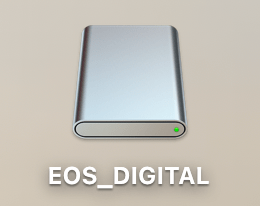
Step 2: Once your card is plugged into your computer you’ll get an icon that looks like this on your desktop.
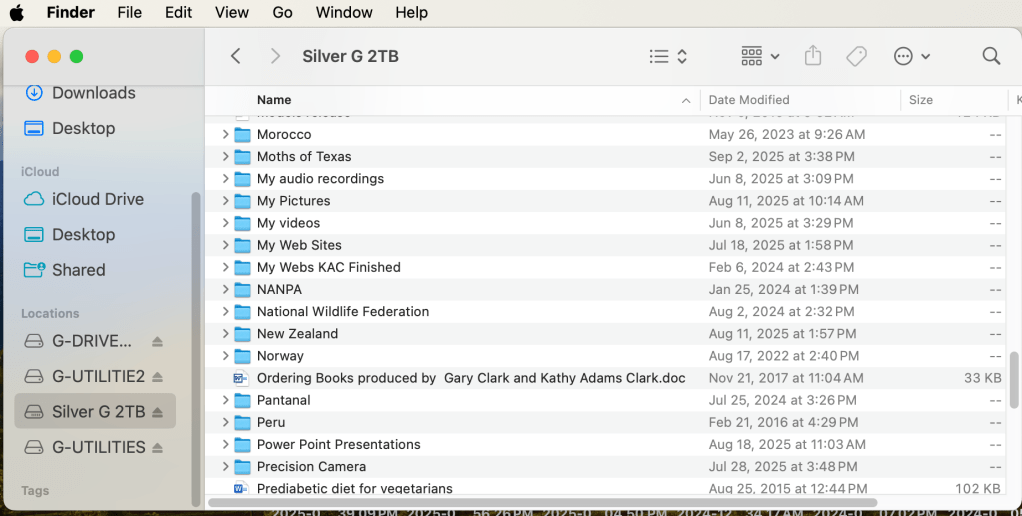
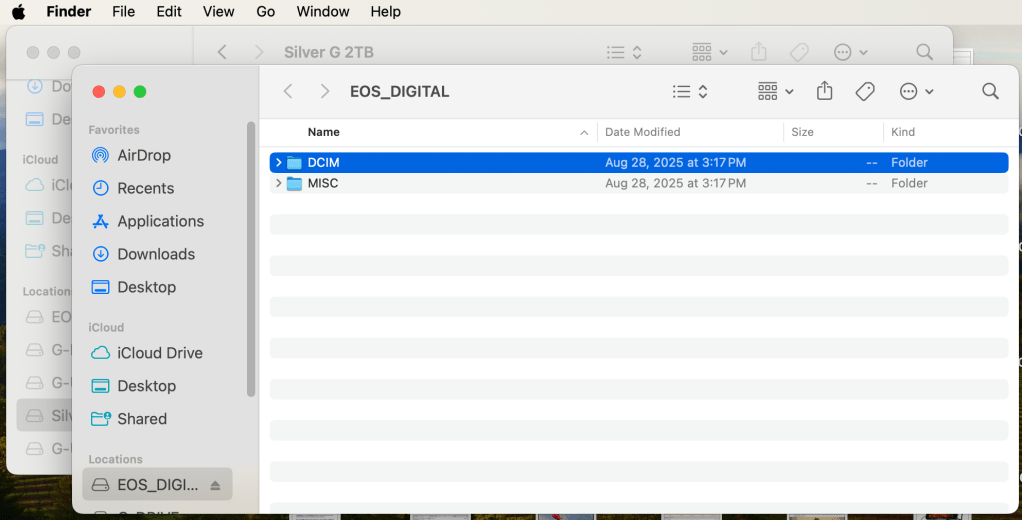
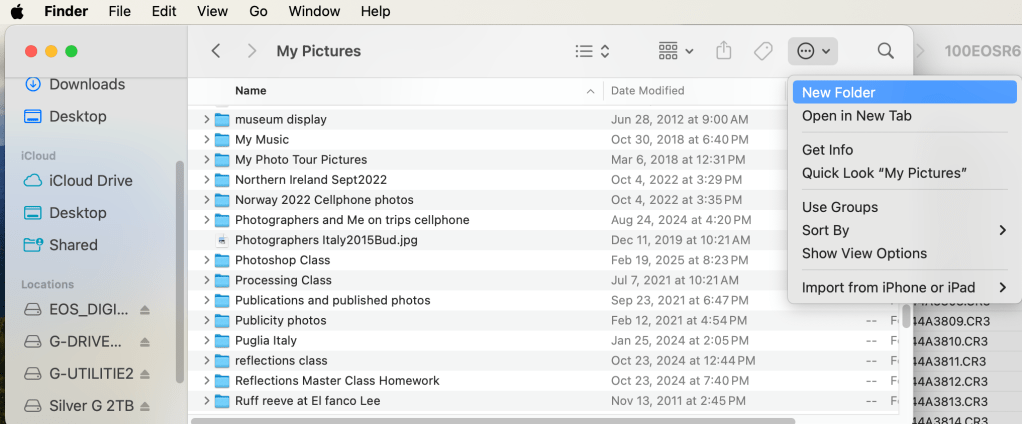
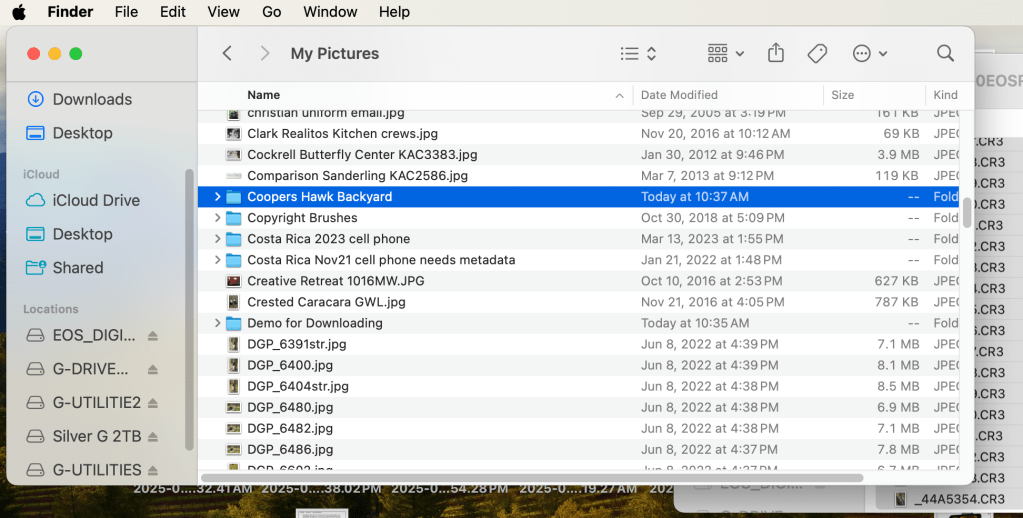
Open a Finder window. Click on the Hard Drive destination for the photos. I have a folder called “My Picture” on my Hard Drive. That’s where I put all my pictures.Open a second Finder window. (Right click on Finder and select “New Finder Window”.) Double click on the EOS_Digital and you’ll see a DCIM folder. Nikon, Sony, Fuji, Olympus will call the card something else but everyone has a DCIM folder. Double click on the DCIM folder to open it. Double click on the folder containing your photos. In the example above, Canon calls the folder 100EOSR6. You’ll see your photos. The example above is in List view. Notice the date I took the photo is under Date Modified. A correct date and time in your camera will give the correct information here. Select the photos you’d like to move or copy. They will be highlighted in blue. (Note shown here)Click on your first Finder window. (Click up by the words My Pictures to do this.) Click the icon show above and select New Folder. We’re going to make a new folder for your photos. Name the folder something that makes sense to you. Use the date, location, subject, etc. Once you’ve made the folder, double click to open it.
Click on the folder you made for the photos. With the folder open, click on the second Finder window. The photos you selected earlier will turn blue. Click and drag the photos into the new folder. If click and drag is hard for you, use copy and paste. Those are found in the Edit menu at the top left.
I hope this helps. Post any questions below. Yes, I know there are other ways to do this. This blog illustrates my method.
Wayne sent me an email asking if his next card should be a SD or a CF. Good question!
Here’s my reply:
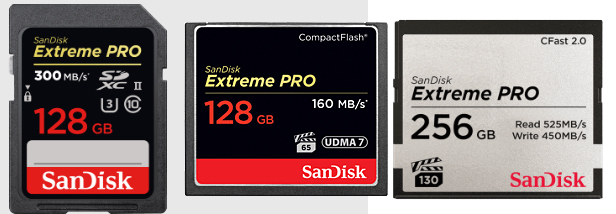
I visited the Sandisk site to see what they are currently offering.
–CF Cards by Sandisk: 256 GB with 160 MB/s. 128 GB with 120 MB/s
–SD cards by Sandisk: 256 GB with 150 MB/s. 128 GB with 300 MB/s (That’s fast!!)
— CFast 2.0 by Sandisk: 512 BG with 450 MB/s (Wow doggie!!)
Background Information — In the beginning of the digital photography age we had Compact Flash cards, Standard Definition cards, and some other cards that have fallen by the wayside.
Compact Flash cards, or CF cards, were for the big, new digital cameras, like the 10D and D100 made by Canon and Nikon. Standard Definition cards, or SD cards, were for the tiny point-and-shoot cameras. Tiny cameras needed tiny cards.
Then camera like the Canon Rebel came out with SD slots. Eventually, the larger digital SLR cameras came out with SD slot and a CF slot. The Canon 6D is a larger digital SLR and it only takes the smaller SD cards.
What we have today is a choice. SD cards are just as fast as CF cards. Then CFast 2.0 are on the market with reasonable prices.
Canon wrote on their site that they are not abandoning the CF cards because so many pros use them. Good to know.
How fast of a card do you need? Do the math. Photo size x burst rate is the basic formula. 24MB raw file x 7 frames per second = 168 MB per second. That’s your starting point.
Ask also “how often do you hold the button down for 7 fps?” If the answer is often, then get a fast card. If the answer is never, then speed is not an issue when buying cards.
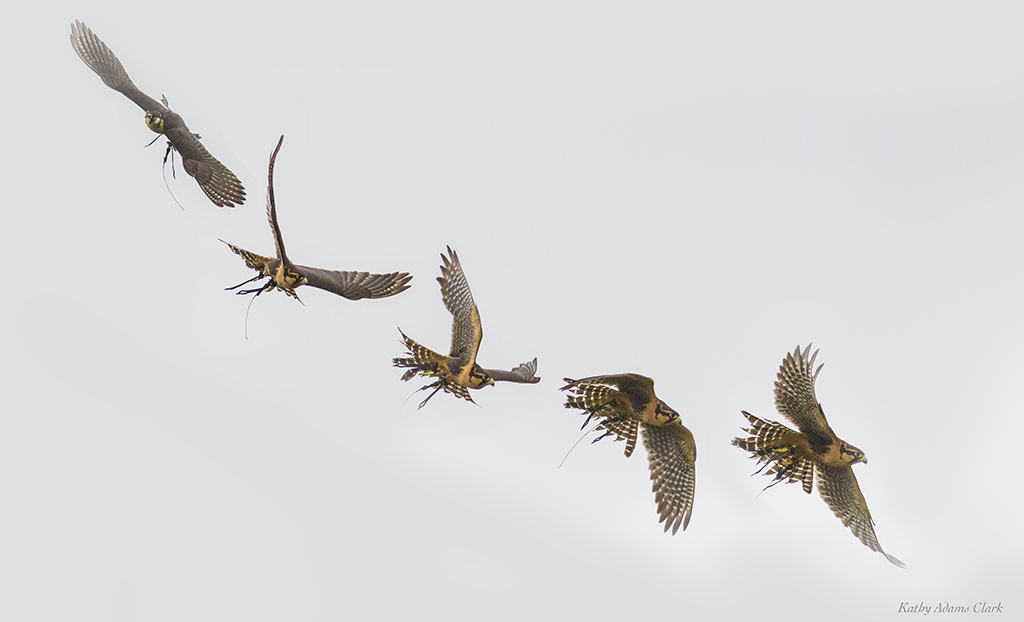
Sequence of an aplomado falcon in flight. We need fast card and fast “frames per second” to capture the action.
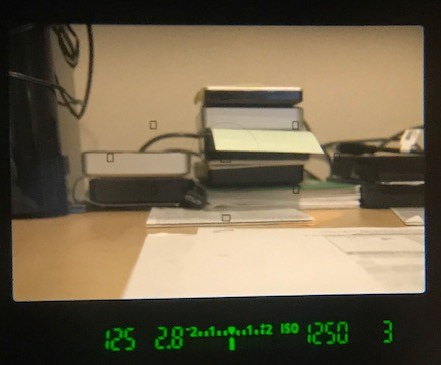
One last thing if you’re still with me. Buffer is also an issue. Look through your viewfinder on your camera. Push the shutter button half-way down. Look at the number is the bottom right corner or along the right side. The number might be 3 or 6 or 19 or 56. That number is how many photos the camera’s buffer (internal memory) can hold before the dreaded BUSY signal pops up and the camera stops firing. The buffer is based on the size of the photos you’re taking such as RAW or fine JPG. Bigger the photos the less photos that will fit in the buffer.
Question from a reader: I was taking photos yesterday of my daughter at a gymnastics event. A red light in the bottom right corner on my Canon Rebel kept flashing. Once I saw the word “BUSY” in the viewfinder. What was I doing wrong?
The red flashing light on your camera shows that the camera is accessing the memory card.
It’s normal to see a red light when the camera takes a photo. (Nikon users see a green light.) The light should quickly go on-and-off if all is well.
During a rapid burst of photos, the red light will flash as long as the camera is moving the photos to the memory card. The camera has a memory buffer of 6-9 photos. It’s holding those in memory and waiting to move them photos to the card.
If you take 10 photos in a row, the camera moves some to the card and then some to the buffer. Those in the buffer wait in line until it’s time for them to move to the card.
You’ll see BUSY in the viewfinder if you take too many photos and the buffer fills. The camera won’t take any more photos until the buffer clears out and has room to store another photo.
You’re likely to see the flashing red light and BUSY in the viewfinder if you held the shutter button down and took a lot of photos. Those photos need to process out of the buffer and through to the card.
Solution — get a memory card that records faster. How fast? That depends on the camera. A 20MB camera that takes 7 fps (frames per second) is going to record 140MB worth of photos per second. A card that records 64MB per second can record roughly three frames a second. The other four frames are going to sit in memory. That means you have three frames recording to the card while four photos are waiting in buffer. That’s usually okay since the buffer will clear in a second or two.
This card records 150MB/s. That’s seven photos per second using a 20MB camera.
This card records 45MB/s. That’s two photos per second using a 20MB camera.
The card on the left records 150MB/s. That’s seven photos per second using a camera with a 20MB file. This is almost more card than the Rebel needs. Someone who shoots sport or action regularly might need this, though.
The card on the right records 45MB/s. That’s two photos per second using the same camera. Too slow for someone photographing sports or action.
The card you need depends on what you photograph and what camera you use. I get my cards from Hunt’s Photo and Video. Ask for Alan Samiljan (781) 462-2383 or email him at asamiljan@huntsphoto.com His hours are Monday, Tuesday, Thursday & Friday, 8:30-5:00pm eastern





 Kathy Adams Clark